To reset the 'Toner Life End' / 'Replace Toner' message on Brother HL monochrome (black and white) printers:
- 1. Open the front cover and leave it open while completing the following steps.
- 2. Turn the printer off.
- 3. Hold the 'go' button (or 'start' button) while turning the printer on. All panel lights should be on.
- 4. Release the 'go' button (or 'start' button).
- 5. Press the 'go' button (or 'start' button) 2 times.
- 6. Pause. All panel lights should be on.
- 7. Press the 'go' button (or 'start' button) 5 times. The toner light should be off (the error may be flashing). The paper light should be on or flashing.
- 8. Close cover. The ready light should be the only light on.
To reset the 'Toner Life End'/'Replace Toner' message on Brother MFC monochrome (black and white) printers:
- 1. Open the door and press the Clear/Back key
- 2. Press *00
- 3. Press OK
- 4. Do not choose anything for drum replacement. When the drum replacement menu comes up, press * and then 00, then press OK.
To reset the 'Toner Life End' / 'Replace Toner' message on Brother DCP, MFC and HL colour printers:
- 1. With the printer powered on, open the toner access door. (You will see a 'Cover is Open' message on the LCD screen.)
- 2. Press the 'Clear/Back' button to get to the 'Reset Menu'
- 3. At the Reset Menu you can then scroll through the reset options for your printer's toner cartridges. You will get reset options for all four colours (BK, C, Y, M). If your printer takes high yield and standard yield cartridges, there will be an option to reset either one.
- 4. Select the proper size and the colour of the toner cartridge you want to reset, then press OK.
- 5. Each cartridge must be reset individually. Press '1' to reset.
- 6. Press 'Clear/Back' to get out of the menu, then close the door.
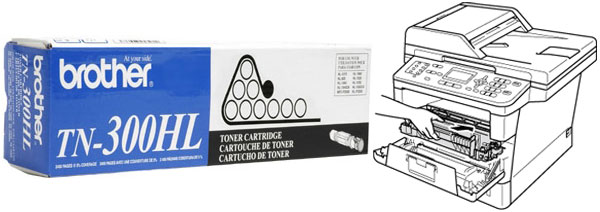
Brother TN300HL
- Brother MFC-P2000
- Brother HL-820
- Brother HL-1040
- Brother HL-1050
- Brother HL-1060
- Brother HL-1070
- Brother HL-P2000
- Brother MFC-Z5000