Reset brother DR350 Drum Change Soon
Resolving the "Replace Brother Drum" message
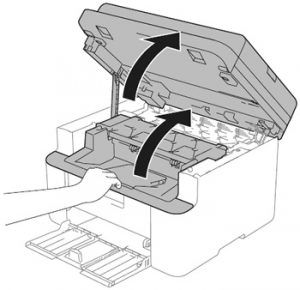
Here's exactly what you can learn from this page to help you to replace or resolve your Brother drum message:
- What does the ‘Replace Drum' message mean?
- How to find, remove and replace the Brother drum
- How to reset the drum and clear the ‘Replace Drum' message.
- Where to buy a new Brother Drum Unit.
What does replace drum mean?
A drum unit is a maintenance item for your Brother printer (or other manufacturer Laser printer) that will sometimes need to be replaced but not as often as a toner cartridge.
A drum unit is a green metal cylinder or tube that carries a static electrical charge that attracts the toner powder from the toner cartridge and applies it to the paper as it passes through the printer. Therefore, you will always find that drum unit is located very close to or even attached to the toner cartridge.
How to find, remove and replace the Brother drum unit
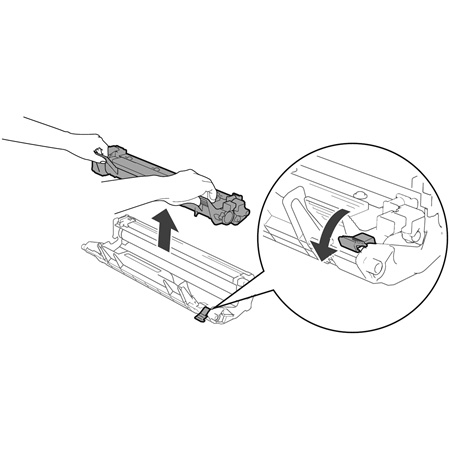
1. To find it, simply open the front flap of your laser printer and find the
toner cartridge(s) which the drum unit will be attached to or beneath.
2. Pull any green toner locking levers down to release the cartridge and then
slowly pull the cartridge towards yourself and out of the machine. Place the
toners on a flat protected surface.
3. On the toner cartridge(s) there will be a green lever that can be pressed to
lift the toner off the drum unit.
4. The drum unit can then be replaced and toner locked back into place on top of
the new drum.
5. Re-insert both toner and drum back into your printer.
Clearing the ‘Replace Drum' message / resetting the counter
If you've just replaced the drum unit of your Brother printer, are you now seeing the message "Replace Drum"?
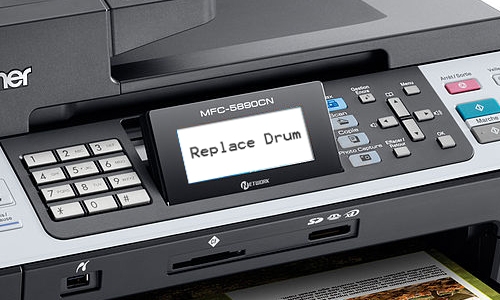
The cause
Ink and toner cartridges, as well as the drum units of some other manufacturers, have chips on them. Basically these chips are a way for the cartridges and drum units to identify themselves with the printer after you've installed them.
However, some original and compatible Brother drum units don't have these, and this is the case with the drum unit. Without a chip, your drum unit has no way of being able to associate itself with your Brother printer. As a result, you will get the "Replace Drum" message because your printer thinks that you've not installed a drum unit.
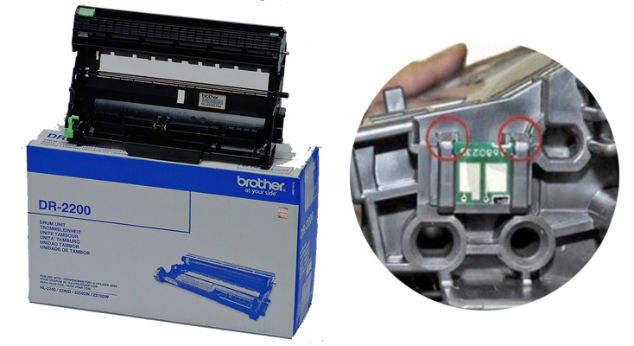
On the right is a standard toner cartridge with a chip. The DR2200 drum unit (left) doesn't have one of these.
The solution
Don't panic. There's no need to ring up your supplier for a replacement. There's one really simple task that you can do to reset your printer and get it up and running again.
If you've got a Brother MFC-7360N, MFC-7460N, MFC-7460DN or MFC-7860DW
On your printer:
-
Press ‘Clear'
-
Press the number 1
-
Ensure that you now see the "Accepted" message on your display
If you've got a Brother DCP-7055, DCP-7055W, DCP-7060D, DCP-7065DN or DCP-7070DW
On your printer:
-
Press ‘Clear'
-
Press the up arrow
-
Ensure that you now see the "Accepted" message on your display
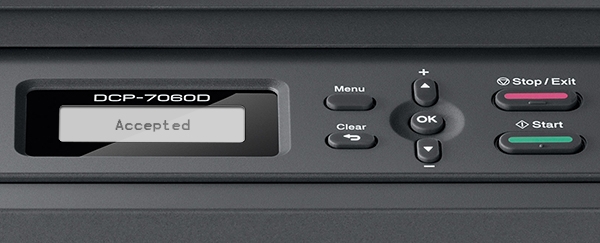
And that should sort it out!
This guidance works for almost all of our customers that ring us concerned after they've just bought their new DR2200 unit or any other drum unit. We hope that it's now worked for you, too.